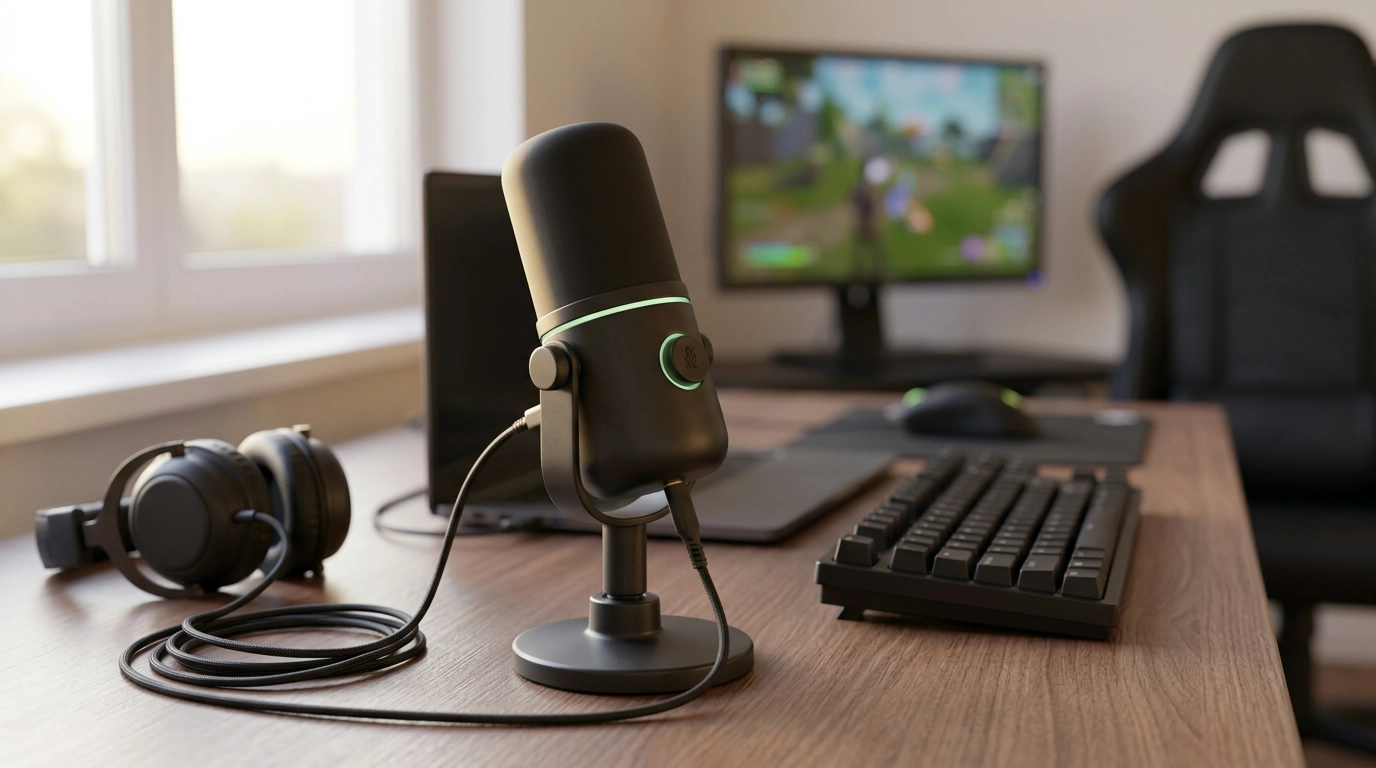
A desk microphone should make voice chat and streaming simple: clear capture, quick mute access, and headphone monitoring that stays in sync. This RGB USB-C mic focuses on plug-and-play setup, tactile controls, and real-time monitoring for gaming sessions, meetings, and content creation. With a desktop-friendly footprint and a dedicated mute button, it’s designed for fast control when things get loud—or when you need instant privacy.
What it’s built for
- Gaming voice chat: consistent levels with easy mute control during tense moments.
- Streaming and recording: a dedicated mic helps separate voice from controller/keyboard noise compared to many headset mics.
- Calls and remote work: straightforward USB-C connection without an audio interface for everyday meetings.
- Night setups: RGB lighting adds visibility and style on dim desks.
Key features that matter day to day
- USB-C connectivity: pairs naturally with modern PCs and many laptops for a quick plug-and-play workflow.
- One-touch mute button: immediate privacy during chat, meetings, or when you step away from stream.
- Zero-latency monitoring: headphone output lets you hear your voice in real time, not delayed.
- RGB lighting: coordinates with gaming setups and adds a clear “on-desk presence” in darker rooms.
- Desk-first design: easy positioning near a keyboard without committing to a boom arm right away.
Set up in minutes
A clean setup makes the biggest difference in how “pro” a USB mic sounds. Start with placement, then confirm the right input is selected, and finally dial in monitoring.
- Place the mic 6–10 inches from your mouth and angle it slightly off-axis to reduce plosives (the “p” and “b” air bursts). Shure’s general mic technique tips are a helpful reference for everyday positioning habits: https://www.shure.com/en-US/performance-production/louder/microphone-technique.
- Connect via USB-C, then select the microphone as your input device in system audio settings.
- Plug headphones into the monitoring port and set a comfortable listening level (if the mic includes a headphone volume control) before joining a call.
- Test the mute button inside your chat/meeting app to confirm the button state matches what others hear.
- Record a 10–15 second test clip to check for keyboard noise; reposition the mic closer to your mouth rather than boosting gain aggressively.
If you run into OS-level input issues, the official troubleshooting pages can speed things up: Microsoft microphone fixes and Mac input settings.
Getting the most from zero-latency monitoring
Monitoring is where a lot of USB mics quietly outperform “software-only” setups. The goal is simple: hear what the mic is capturing right now, so you can adjust before teammates (or your audience) notice.
- Use monitoring to catch clipping early: if your voice sounds crunchy or distorted, lower the input gain in system settings and move a little closer to the mic.
- Keep monitoring volume comfortable: blasting your own voice in headphones can cause you to unconsciously talk too softly.
- If people report echo: make sure the mic isn’t picking up headphone audio—reduce headphone volume, turn the mic slightly away from the ear cups, and keep the mic closer to your mouth than your headphones are.
- For streaming: monitor directly from the mic while disabling software monitoring in streaming/recording apps to avoid doubled audio.
Compatibility and practical considerations
- Computer compatibility: works best with devices that support standard USB audio class behavior; confirm it appears as an input device in your sound settings.
- Console use: USB microphone support varies by platform and even by game. Confirm your console recognizes USB audio input and test before a long session.
- USB hubs: if you must use a hub, a powered hub is often more stable and can reduce dropouts.
- Desk acoustics: hard surfaces reflect voice and can add harshness; a desk mat, curtains, or soft furnishings can noticeably smooth the sound.
Quick spec snapshot
Use this table as a checklist while comparing desk microphones for gaming and calls.
Feature checklist for this USB-C desk microphone
| Feature |
Why it helps |
What to check during setup |
| USB-C connection |
Fast plug-and-play with many modern devices |
Select it as the default input in system settings |
| Mute button |
Immediate privacy control |
Verify the mute state in the chat/recording app |
| Zero-latency headphone monitoring |
Hear your voice in real time without delay |
Turn off software monitoring to prevent echo |
| RGB lighting |
Matches setups and improves desk visibility |
Confirm lighting doesn’t distract on-camera if streaming |
| Desktop placement |
Simple positioning near keyboard |
Aim the mic toward the mouth; reduce keyboard pickup |
Who this microphone is a good fit for
Common setup issues and simple fixes
In-stock picks
FAQ
What does zero-latency monitoring mean on a USB microphone?
It means your headphones receive your mic signal directly from the microphone hardware, so you hear yourself in real time with no noticeable delay. If you also enable monitoring inside an app, you may hear a doubled/echo effect, so it’s best to use one monitoring method at a time.
How do mute buttons work on gaming microphones?
Most mute buttons stop the mic’s audio output at the device level (or via the mic’s onboard control), cutting your voice immediately without hunting for software toggles. Always confirm how your specific chat or recording app reflects mute status, since some interfaces may still show input activity depending on settings.
Can a USB-C gaming microphone work on consoles?
Sometimes—console USB mic support depends on the platform and, in some cases, the game. Check your console’s audio input options and test whether the mic appears as a selectable USB input before relying on it for party chat.
Recommended for you




Leave a comment